
In this quickstart, you will create and deploy a small sample database and access it from an iOS app.
Prerequisites
To complete this quickstart, you'll need the following:
- An environment with the following tools installed:
- A recent version of Xcode.
- The Firebase CLI. If you have NPM installed, run:
npm install -g firebase-tools@latest
- A Google Account.
Tutorial
| Tutorial | |
|---|---|
1. Create a new Xcode projectIn Xcode, create a new project with the App template. |
Name the project Quickstart with the bundle identifier com.example.Quickstart. 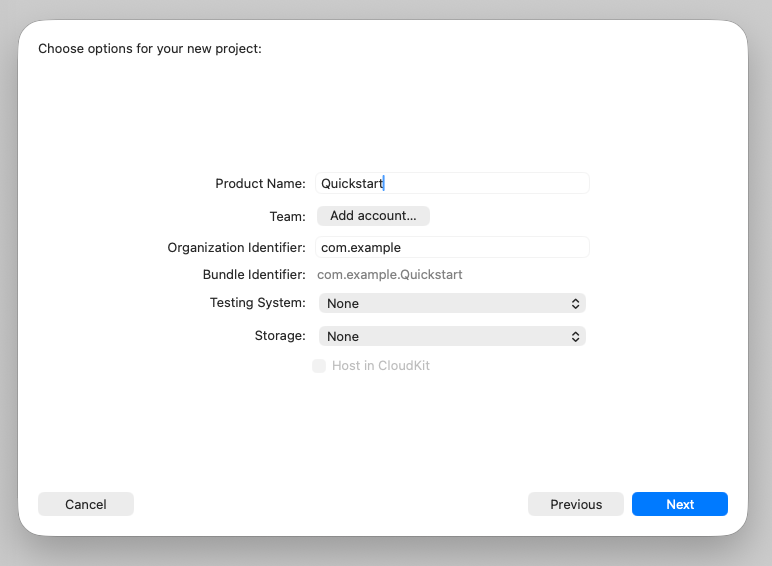
Create the project in an empty folder, like |
2. Initialize a Firebase projectChange to the project directory of your Xcode project and initialize a Firebase project in it. |
cd ~/qs-iosfirebase login --reauthfirebase init dataconnectWhen prompted, choose the following options:
Accept the default values for all other prompts. Next, register the iOS app in your Firebase project. firebase apps:create --bundle-id com.example.Quickstart ios ios-quickstartWhen prompted to specify an App Store ID, press Enter to skip the step. firebase apps:sdkconfig ios -o Quickstart/GoogleService-Info.plistIn Xcode, select File > Add Files to "Quickstart" and select the
|
3. Review the example GraphQL definitionsIn SQL Connect, you define all of your database schemas and operations using GraphQL. When you initialized your project, the Firebase CLI created some example definitions to get you started. |
dataconnect/schema/schema.gql (excerpt)
type Movie @table { title: String! imageUrl: String! genre: String } type MovieMetadata @table { movie: Movie! @unique rating: Float releaseYear: Int description: String } query ListMovies @auth(level: PUBLIC) { movies { id title imageUrl genre } } |
4. Deploy your schemas and operationsWhenever you make changes to your database schemas, queries, or mutations, you must deploy them for your changes to take effect on the database. |
|
5. Seed the database with sample dataThis seed data will give you something to look at when you test the sample app. Note that in this step you are executing arbitrary GraphQL, which is allowed for administrative tasks. |
|
6. Generate an iOS client SDKThis command uses your GraphQL definitions to generate an iOS client SDK specifically for your database. You use this library in your client app to perform all database operations. You can generate libraries for multiple platforms, including
Kotlin for Android, JavaScript for web, and Flutter, by adding definitions to
|
public class ListMoviesQuery { // ... @MainActor public func execute( fetchPolicy: QueryFetchPolicy = .preferCache, ) async throws -> OperationResult<ListMoviesQuery.Data> { var variables = ListMoviesQuery.Variables() let ref = dataConnect.query( name: "ListMovies", variables: variables, resultsDataType: ListMoviesQuery.Data.self, publisher: .observableMacro) let refCast = ref as! QueryRefObservation<ListMoviesQuery.Data, ListMoviesQuery.Variables> return try await refCast.execute(fetchPolicy: fetchPolicy) } } |
7. Add Firebase dependencies to your Xcode projectAdd the generated library to your project using Swift Package Manager. When you add the generated library, it will transitively include the Firebase core libraries and the Firebase SQL Connect library. |
In the Xcode navigation bar, select
File > Add Package Dependencies > Add Local, and choose the folder containing
the generated library,
|
8. Write a sample iOS clientReplace the contents of
Notice that the app completes the necessary database access using a function from the generated SDK. |
import SwiftUI import FirebaseCore import FirebaseDataConnect import DataConnectGenerated @main struct QuickstartApp: App { init() { FirebaseApp.configure() } var body: some Scene { WindowGroup { ListMovieView() } } } struct ListMovieView: View { @State private var moviesData: ListMoviesQuery.Data? var body: some View { VStack { ForEach(moviesData?.movies ?? []) { movie in Text(movie.title) } } .task { let result = try? await DataConnect.exampleConnector .listMoviesQuery.execute() self.moviesData = result?.data } } } |
9. Try the appFrom Xcode, run the example app to see it in action. |
|
Next steps
Try the SQL Connect VS Code extension
When developing with SQL Connect, we strongly recommend using the SQL Connect VS Code extension. Even if you don't use Visual Studio Code as your primary development environment, the extension provides several features that make schema and operation development more convenient:
- A GraphQL language server, providing syntax checking and autocomplete suggestions specific to SQL Connect
- CodeLens buttons in line with your code that let you read and write data from your schema definition files and execute queries and mutations from your operation definitions.
- Automatically keep your generated SDKs synchronized with your GraphQL definitions.
- Simplified local emulator setup.
- Simplified deployment to production.
Use the SQL Connect emulator for local development
Although this tutorial showed you how to deploy SQL Connect schemas and operations directly to production, you will likely not want to make changes to your production database while you are actively developing your app. Instead, set up the SQL Connect emulator and do your development work against it rather than production. The emulator sets up a local PGlite instance that behaves similarly to a live PostgreSQL instance on Cloud SQL.
Learn how to write schemas and operations for your app
When developing apps with SQL Connect, the design of your schemas and operations is one of the first and most important development tasks you will complete.
- Gemini in the Firebase console is an AI tool that can generate SQL Connect schemas from a natural language description of your app. This tool can get you started very quickly, especially if you've never worked with relational databases before.
- Alternatively, you can write database schemas, queries, and mutations directly using GraphQL. Start with the guidance in Design SQL Connect schemas, and then continue to the follow-up pages to learn how to write operations.
Learn how to get real-time updates from SQL Connect
You can use SQL Connect to write client applications that react to changing data in real time. See Get real-time updates from SQL Connect.